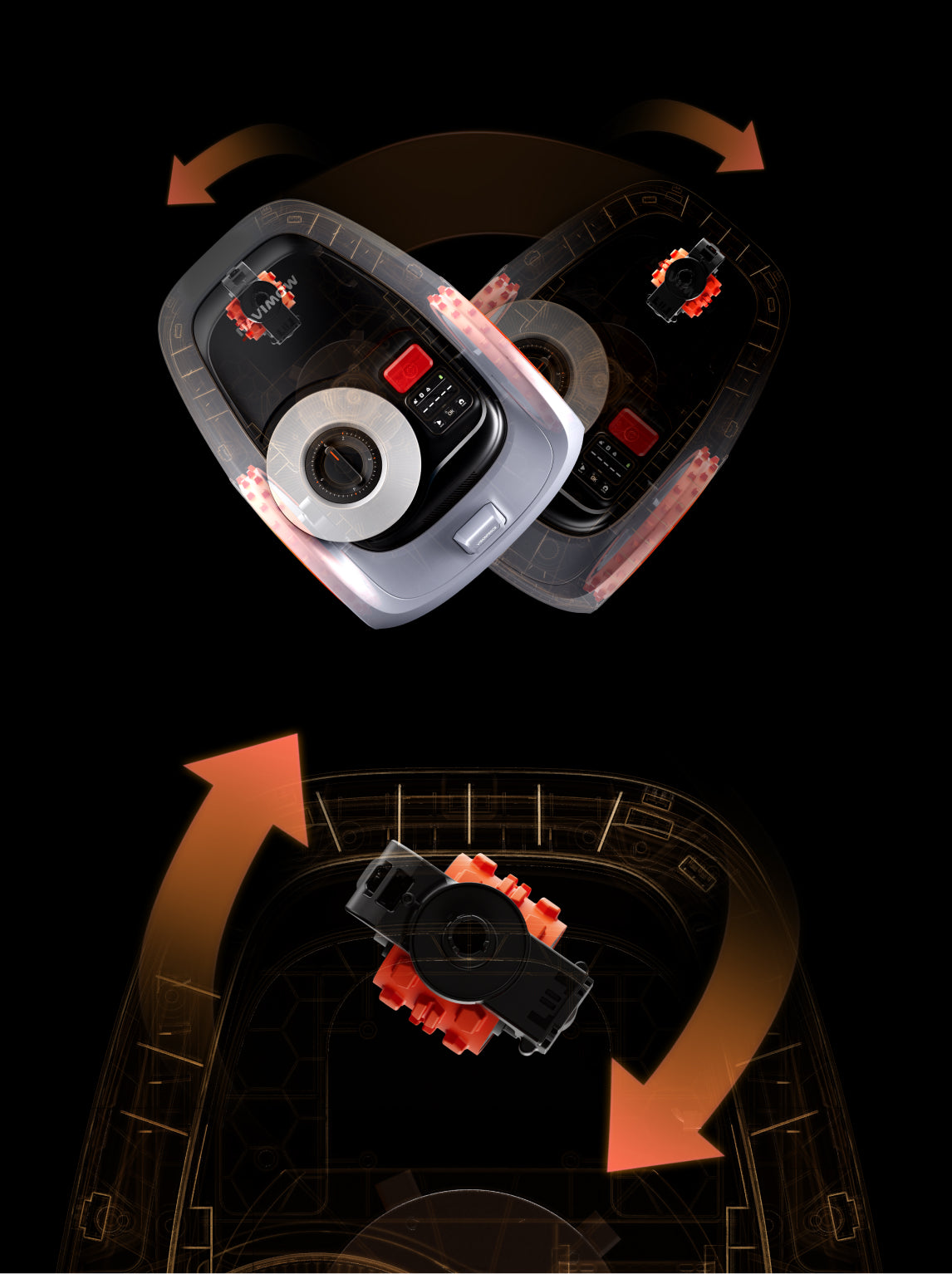
Navimow robot lawn mowers can also conquer complex lawns. They are equipped with advanced navigation technologies, precise obstacle detection, and powerful wheel drive. They can mow almost any type of lawn to perfection.
For precise mowing results and to cover every corner of the lawn, it is necessary to map the area carefully. You have to make multiple zones, channels, off-limit islands, and VisionFence™ off zones to cover every inch. And that’s where new users make mistakes.
This article is all about mapping a complex lawn through the Navimow app. We will take you through the step-by-step process so that you can map your lawn without any hassle and ensure artisan-level mowing.
1) Prepare the Lawn
New users often ignore this step, but it is necessary to map the lawn precisely. You have to prepare the whole lawn before you start mapping. Without it, the mower might leave some areas or drift while mapping.
Clean the lawn area thoroughly. If there are any stones, twigs, toys, or any objects, take them out of the lawn. Often, there are hidden obstacles in the lawn, such as hanging branches, tree roots, a water hose, and other things. Get rid of these things so that the mower can map and mow without any hassle.

If the grass is over 3.6 inches, mow the area before mapping. Navimow lawn mowers could consider long grass as an obstacle and might deviate while mapping.
2) Divide the Lawn into Zones
The best way to handle the mapping of a complex lawn is to divide it into small zones. It reduces the complexity to a certain level.
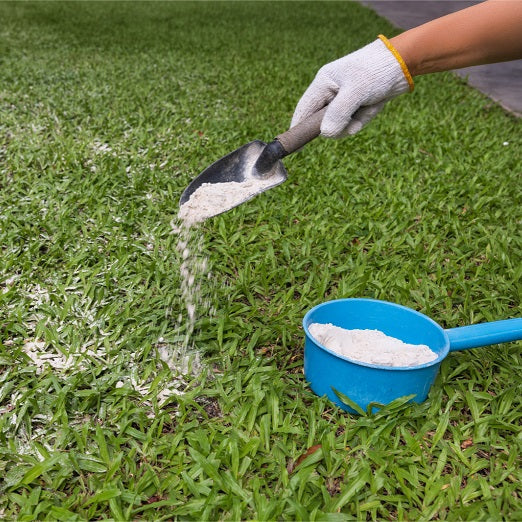
You can divide the whole lawn into zones in your mind or on paper first. You can even use flour to mark certain areas.
Keep in mind that it is better to have straight lines on the border. If there is a turn or corner, make sure it is no less than 90⁰. Once you have a complete idea of the number of zones and their boundaries, you can map easily.

3) Map the First Zone
Navimow offers two mapping options: Auto Mapping and Manual Mapping.
Auto mapping is definitely easier, but it is for lawns with defined boundaries and flat edges. It is not suitable for complex lawns.
In this case, you should go with Manual Mapping. It gives you complete freedom to select zones and map the area as you like. Secondly, it ensures more precise results.
Manual mapping is quite easy with the Navimow app. You just need to move the lawn mower like an RC car in the lawn. You can map the area quickly, and it’s extremely simple.
Let’s start with mapping the first zone.
Step 1: Open the Navimow app. Tap “Create a Map.”
Step 2: Navimow mowers can calibrate on their own. You just need to hit the Calibrate button. The mower will come out of its station, move a bit, and then return. Once you are done with that, tap “Start Mapping.”
Step 3: You have to reach the point from where you want to start mapping. Now, you are ready to use the control button in the app. Go to the point with the mower and tap “Reached starting point.”

Step 4: It’s time to map the area. Move the mower along the edges. Try to be as close as possible. Try to move in a straight line, and if there is a turn or corner, it should be more than 90⁰.
Step 5: If you make any mistakes while mowing, you don’t need to start over. Just tap the Eraser button and hold it. The mower will go back and erase the line. You can leave the button once the mower has moved enough. After that, you can map that portion again.

Step 6: When you are about to complete the mapping of the first zone, you will reach the starting point. It will make a closed loop. Tap the “Done” button to finish mapping.
4) Map Other Zones
After mapping the first zone, you can map other zones one by one. It’s pretty simple, and you only need to follow the steps below.
Step 1: On the map, you will see the “Add More” button. Tap it.
Step 2: Tap Boundary. It’s for creating the boundaries of other zones.

Step 3: Now, you need to move the mower to the starting position and follow the same procedure. You can map as many zones as you want within the limit of the Navimow mower you have.
Navimow Terranox: Suitable for lawns up to 6 acres and handles up to 120 zones, including non-mowing areas
Navimow X4: Ideal for lawns up to 1.5 acres and works on up to 120 zones, which also include non-mowing areas.
Navimow H2: For lawns up to 0.5 acres and handles up to 30 zones
Navimow i2 LiDAR: Handles lawns up to 0.37 acres and 20 zones
Navimow i2 AWD: Suitable for lawns up to 0.25 acres and mows up to 20 zones
Step 4: After drawing the boundaries of all zones, you can save the map.
5) Create Channels
Navimow mowers can automatically travel between zones. Once they mow one zone, they move to the other. But it is only possible if you make channels. They are the pathways that connect different zones. You can also use a channel to connect the edge of the lawn to the charging station.
Here’s how you can make them.
Step 1: Open the lawn map and tap Add More > Channel.
Step 2: You will be asked to move your mower to the starting point. Move the mower to the boundary from where you want to start the channel. Then, take the mower to the boundary of the other zone. The app will create the channel automatically. Make sure there are no obstacles within 3.3ft (1 meter) of the channel.

Step 3: Tap Done. If you want to make more channels, you can follow the same steps. Once you have made all the channels, you can save the map.
6) Map Off-limit Islands in All Zones
In complex lawns, you might have multiple areas within zones that you don’t want to mow, such as swimming pools, the area around a large tree, flowerbeds, play areas, etc.
The best thing is that you can map such areas as the Off-limit Islands. Once you do that, the mower will not go into that area.
Here’s how to map off-limit islands in zones.
Step 1: Open the map and tap “Add More.”
Step 2: You will see a few options. Tap Off-limit Island.

Step 3: Now, move the mower to the starting point and tap “Reached starting point.”
Step 4: You are ready to map the area. Move the mower around the land you don’t want to mow. Tap Done.
By following the same method, you can map multiple Off-limit Zones in the lawn. Once you are done, you can save the map.
7) Add a VisionFence™ Off Zone
Often, some areas in complex lawns are falsely detected as obstacles. For instance, if there are stone roads or utility holes, the mower considers them as obstacles. That’s why it won’t cross the stone road.
To deal with such areas, Navimow offers VisionFence™ Off zones. You can select the area, and the function automatically turns off the camera sensor and the LiDAR sensor used for obstacle avoidance. Thus, the mower will pass through these areas. It will mow the grass but won’t detect any obstacles.
Step 1: On the Navimow app, go to the map.
Step 2: Tap Add More > VisionFence™ Off Zone.

Step 3: You will have a rectangle on the map. Move it to the area where you want the VisionFence™ off zone.
Step 4: Adjust the size of the rectangle as you like. You can also add more VisionFence™ off zones through the same method. Finally, save the map.
Keep in mind that once you select any area as a VisionFence™ off zone, the mower won’t detect any obstacles there. Therefore, it should only be used for safe and predictable areas. Do not use it in areas where you have pets and kids around.
8) Turn On Edge Mowing
If your lawn has uneven and complex edges, then Edge Mowing is the perfect option. It’s a special feature in the Navimow mowers to mow extremely close to the edges. With the help of AI-powered cameras, LiDAR, and other sensors, the mower automatically detects the boundaries and mows accordingly, no matter how complex they are.
It ensures extremely precise mowing results in complex lawns. When it is enabled, the mower begins with the edges in every task. It passes 1-3 times through the perimeter of the lawn as well as the edges of Off-Limit Islands before mowing the middle area.
Step 1: Open the Navimow app.
Step 2: Go to Settings > Map management > Edit.
Step 3: Enable Edge Mowing.

Final Words
Mapping a lawn with the Navimow application is pretty easy. Even if you have a complex lawn, you can map every corner without any hassle. You need to prepare the lawn, map multiple zones, create channels, map off-limit islands, add a VisionFence™ off zone, and enable edge mowing. We have shared the step-by-step process of doing all these to automate the mowing of your complex lawn with Navimow robot lawn mowers.