Navimow lawn mowers work according to the mapped lawn area and navigate precisely on the lawn. They cover every corner, edge, and contour.
But if the mowing has been completed and the mower has missed some areas while following an abnormal path, it indicates an issue.
We will discuss some common reasons for an abnormal mowing path. We will also share some effective solutions to help you fix the issue yourself.
Reason Behind Abnormal Mowing Path
Obstacles
The most common reason for an abnormal mowing path is obstacles. Navimow mowers are equipped with advanced obstacle detection, VisionFence™, which is capable of detecting even small objects like stones, twigs, water hoses, sprinklers, etc. Other than that, there could be toys, hanging branches from flowerbeds, and foreign objects in the lawn.
If there are small obstacles in your lawn, the mower will detect them instantly. It will change its mowing path, which results in an abnormal mowing pattern.

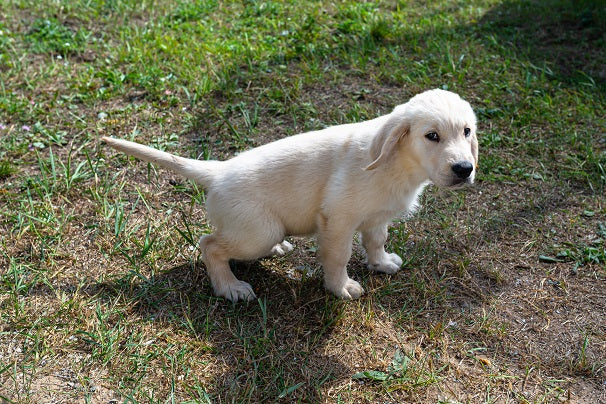
Secondly, if there are animals around when the mower is mowing, it will detect the animal movement in real time. It maintains a safe distance and reroutes instantly. That also results in an abnormal mowing pattern.
Similarly, there could be birds in the lawn. If the mower comes across a bird, it will change its path and mow other places. However, in this case, you don’t have to do anything. The mower will return to mow that place later.
Dirty Camera/LiDAR
Navimow mowers detect obstacles while mowing the lawn. For that, they rely on mounted cameras or LiDAR sensors.
If there is any dust or grime accumulated on the camera lens, the mower won’t be able to see the lawn clearly. It might falsely detect obstacles and reroute, which results in an abnormal mowing path.
Similarly, the LiDAR sensor is also affected by dust and particles. If its field of view is obstructed, it can cause false obstacle detection.

Weak Network
When you set up your Navimow for the first time, you map the whole lawn area. This map is necessary for the mower to navigate the lawn.
Often, the map fails to load because of network issues. If your Wi-Fi signal is weak or the 4G network is unstable, the mower might partially load the map. It leads to an abnormal mowing pattern.
Similarly, if the Wi-Fi signals are weak in certain parts of the lawn, the mower might miss those areas or show an error. That’s because it fails to connect to the internet.
Thus, the mower requires a stable and reliable network to navigate precisely and mow every corner of the lawn.
Non-grass Area
If there are non-grass areas in your lawn, such as stone roads, step stones, or utility holes, the mower will consider these areas as obstacles. When it goes near such areas, it detects the obstacle and deviates from its path.

Suppose there is a stone road in front of the mower. Instead of crossing the road and mowing the area after it, it will reroute and change its path. That’s why the mowing path is abnormal.
For such areas, you need to create VisionFence™ Off Zones in the Navimow app. It will allow the mower to neglect obstacle detection in these areas while mowing. We will share the step-by-step procedure later in the article.
Inaccurate Antenna Placement
To use RTK, you have to place the antenna in your lawn. If you have placed it incorrectly, it will affect the mower’s navigation.
The mower might have an abnormal mowing pattern because it can’t connect to the antenna in certain places of the lawn. Therefore, it would be unable to know its precise location.
The antenna should be in an open area. Walls, trees, and structures can block the GPS signals. Thus, you have to select the antenna location carefully.

Wrong Charging Station Placement
The charging station also assists the mower in knowing its exact GPS location in the lawn. The mower and the fixed GNSS reference antenna simultaneously observe common satellites. Then, the charging station transmits the reference antenna’s positioning data to the mower. It helps the system reduce common GNSS errors and improve positioning accuracy.
Secondly, the obstructions around the charging station weaken the mower’s own GNSS reception. They reduce the number of satellites visible to both the mower and the reference antenna.
This affects the lawn mowing pattern, and the mower may not follow a specific path.

NRTK Coverage Issue
If you are using NRTK for navigation, there could be a possibility of poor coverage in your area.
In some areas, Network RTK is still unavailable. Navimow is partnering with new service providers and rapidly expanding the coverage to more regions.
Even if there is NRTK coverage in your area, there is a possibility that there could be fewer or no satellites in certain places of your lawn. This causes GPS issues, which is why the mower might misbehave while mowing.
Long Grass/Weeds
Long grass and weeds are also considered obstacles. If the grass is relatively too long in any area or there are long weeds, the mower will deviate from its mowing path after detecting them.
If there are long weeds at certain places and long grass, it could be the root cause of an abnormal mowing path. These keep the mower away.

How to Fix Navimow’s Abnormal Mowing Path
Before you try any solution, check if the mower has completed mowing or not. If it is still working, you don’t have to worry about the abnormal path. The mower will complete the remaining area on its own.
But if the mower has completed mowing with an abnormal path or is unable to mow certain areas, you can try the following solutions.
Restart the Mower and App
If your mower has been working fine since you bought it, and it is the first time it is following an abnormal path, you should restart the mower and the app.
Turn off the mower. Put it on the charging station, and then restart it after some time. Similarly, close the application and reopen it. If an update is available, download it.

If that was a temporary problem, the mower will work fine after restarting.
Update the Firmware
Outdated firmware can cause multiple problems. Which is why you should regularly update the firmware.
Open the Navimow app. Go to Settings > Mower > Device Management. Tap Firmware Version. If there is a new version available, you should switch to it.
Before updating the firmware, put the mower on the charging station. Its battery should be at least 20%. Moreover, there should be no mowing scheduled in the next hour.
Inspect and Clean the Area
Inspect the whole lawn, especially the missing areas, and look for obstacles. There could be small stones, twigs, sprinklers, and other objects in those areas that could prevent the mower from mowing that area.
Clean the area thoroughly. Get rid of every foreign object in the lawn. The area should be clean and clear for seamless mowing.
After cleaning the area, try mowing again. This time, it won’t follow an abnormal path.
If there are pets around, that could be the actual cause of the abnormal mowing. You can take the pet away from the mowing area, and the mower will automatically mow the missed parts of the lawn.
Get Rid of Long Grass/Weeds
Get rid of the long or overgrown grass and weeds in your lawn. You can mow the long grass, and the Navimow mower will maintain it from then on.
If there are long weeds in the lawn, try to find out the type of weed. Knowing the type of weed is necessary to choose the right procedure for removing it from the lawn. Otherwise, you might end up spreading the seeds in your lawn or triggering the weed to grow aggressively.
Clean the Camera Lens/LiDAR
Check the camera lens and LiDAR sensor. If there is any dust, grime, grass clipping, or anything on them, clean it.
You should clean the camera lenses and LiDAR sensor on a regular basis. This way, the mower never gets stuck in the lawn. It follows the map and mows every corner without any false obstacle detection.
Try Smaller Zones
Smaller zones also help in making the path mowing normal. If the zone is too big, you can split it into a few small zones.
Step 1: Open the Navimow app.
Step 2: Go to the map and tap Add More.
Step 3: Tap Boundary. You will see the arrow buttons on the app. Move the mower to the point from where you want to start mapping the new zone. Tap “Reached Starting Point.”

Step 4: Move the mower and map the new zone. Try to cover the area in a straight line and do not create corners less than 90⁰.
Step 5: Once you have mapped the zone, you can create channels to connect it with other zones. Tap Add More > Channel. Move the mower to the start of the channel and go to the boundary of the other zone. It will automatically create a channel.

Step 6: After making all these changes, save the map.
Further reading: How to map your lawn in the Navimow app?
Create VisionFence™ Off Zones for Non-grass Areas
For non-grass areas, you have to create VisionFence™ Off Zones. By doing so, your mower will not consider these areas as obstacles. It will neglect them while mowing.
However, you should only make VisionFence™ Off zones in safe and predictable areas. After doing so, your mower will not detect any obstacles in that area. Therefore, create such zones away from kids and animals and make the zone as small as possible.
Step 1: Open the map in the Navimow application.
Step 2: Tap Add More > VisionFence™ Off Zone.
Step 3: You will have a rectangle on the map. Move it to the non-grass area. Adjust its size and position.
Step 4: You can add multiple VisionFence™ Off zones on the map. After adding all, tap Save.

Correct Antenna Placement
Maybe your antenna is in the wrong place and causing the issue. For better results, you need to place the antenna in an open area. There should be no obstacles around it.
Place the antenna away from houses, walls, trees, roofs, and other structures. There should be at least 6.6 ft of distance between these high structures and the antenna. If there is enough distance, the antenna will have an unobstructed view of more than 110⁰.

You can select a suitable location in your lawn. If there is no suitable place, you can place the antenna on the roof or wall. The goal is to provide an unobstructed space for better signal coverage and strength.
For precise placement of the antenna, you can also use the Satellite Signal Analyzer. Open the Navimow app. Go to Settings > Satellite Signal Analyzer. It will show the satellites around the antenna. Place the antenna at a location where there are more satellites available.
Improve Charging Station Location
Keep the charging station away from trees, walls, houses, and other structures. It requires an open area to prevent signal blockage. Keep at least 6.6ft distance between the charging station and tall structures. Secondly, there should be no roof blockage between the station and the sky.
The place of the charging station should be flat. It should be an even area without any slope or bumps. Moreover, there should be 1.6ft clearance on both sides and 6.5ft clearance at the front.

Ensure Better Network
The mower requires a stable network to connect to the internet. If your Wi-Fi network is weak, you can upgrade the Wi-Fi router. Make sure it has a better range and speed.
If the Wi-Fi router is fine but the property is too large, you can use a Wi-Fi extender to enhance coverage.
The best option would be to have a mesh Wi-Fi for large properties. This way, you can create multiple nodes and cover every part of your lawn.
Adjust Base Station for NRTK
Sometimes, the base station isn’t placed at the optimal location, which causes issues in the GPS positioning.
Wherever you want to place the base station, you can check the Satellite Signal Analyzer. It will help you find out the best location in the lawn.
Go to Settings > Satellite Signal Analyzer. Check the satellites. If there are no or fewer satellites in any direction, you can move the base station a bit.
Once you have satellites in all directions, your mower will work without any issues.
Still Having an Abnormal Path? Contact Navimow Support
If you have tried everything, the Navimow mower is still following an abnormal path and missing some areas, you can contact Navimow support at “navimowsupport-us@rlm.segway.com”
Share the following details:
- Serial Number (SN) of your mower
- App version and phone OS version
- Video of abnormal path
- Date and time when the issue occurred
Final Words
If your Navimow is following an abnormal mowing path and missing some areas, you can fix the issue yourself. First, figure out the root cause. We have shared common reasons to help you find what’s wrong in your situation. After that, you can try the solutions we have shared. After trying appropriate solutions, the mower will follow a normal path and cover every area of your lawn. But if the issue still persists, you can reach out to Navimow support.